Ai-LoRaWS-1001 Sensor Firmware Flashing Operation Manual
1. Document Overview
1.1 Purpose
This document provides a detailed explanation of the firmware flashing operation process for the Ai-LoRaWS-1001 sensor. The primary objective is to flash dedicated firmware corresponding to specific frequency band, enabling switching of the device's operating frequency band (e.g., updating the frequency band firmware from the default EU868 to AS923), thus adapting to device debugging scenarios that comply with radio frequency standards in different regions.
1.2 Scope of Application
- Hardware: Ai-LoRaWS-1001 sensor
- Software: Firmware flashing tool (flash_download_tool), serial port driver (CH340 or CP2102 chip driver), serial port tool (SSCOM)
- Scenario: Device debugging for adapting to radio frequency standards in different regions.
1.3 Core Principle
The device's operating frequency band parameters are embedded in the firmware. The target frequency band firmware must be written to the device's MCU via serial flashing, overwriting the original band configuration. Upon power-up, the device will operate according to the frequency parameters in the new firmware, enabling frequency band switching without requiring hardware modifications.
2. Preparations Before Flashing
2.1 Hardware Preparation
| Device Name | Specifications |
|---|---|
| PC | USB port equipped, Windows/Linux system |
| USB-TTL Module | Serial port chips like CH340G, CP2102, FT232 supporting 3.3V/5V level switching |
| Ai-LoRaWS-1001 Sensor | Pins TXD, RXD, GND, VCC, RESET, IO2 exposed |
| Dupont Wires | Female-to-female/ male-to-male acceptable (depending on whether the sensor's flashing port uses header pins or sockets); at least 6 wires required |
| Regulated Power Supply (Optional) | Output voltage matching the device (3.3V/5V), current ≥500mA |
2.2 Software Preparation
- Firmware Flashing Tool:
- General Tool: TremoProgrammer_v0.8, Serial Port Driver (CH340 or CP2102 Chip Driver)
- Firmware File:
- Firmware Naming Convention: vVersion Number_Frequency Band.bin (e.g., 2.5.4_US915.bin)
3. Hardware Connection Steps
3.1 Specific Wiring Method
| USB-TTL Module Pin | Device Pin |
|---|---|
| VCC | VCC (not connected if the device is powered externally) |
| GND | GND |
| TXD | RX0 |
| RXD | TX0 |
| RST | IO2 |
| DTR | RST |
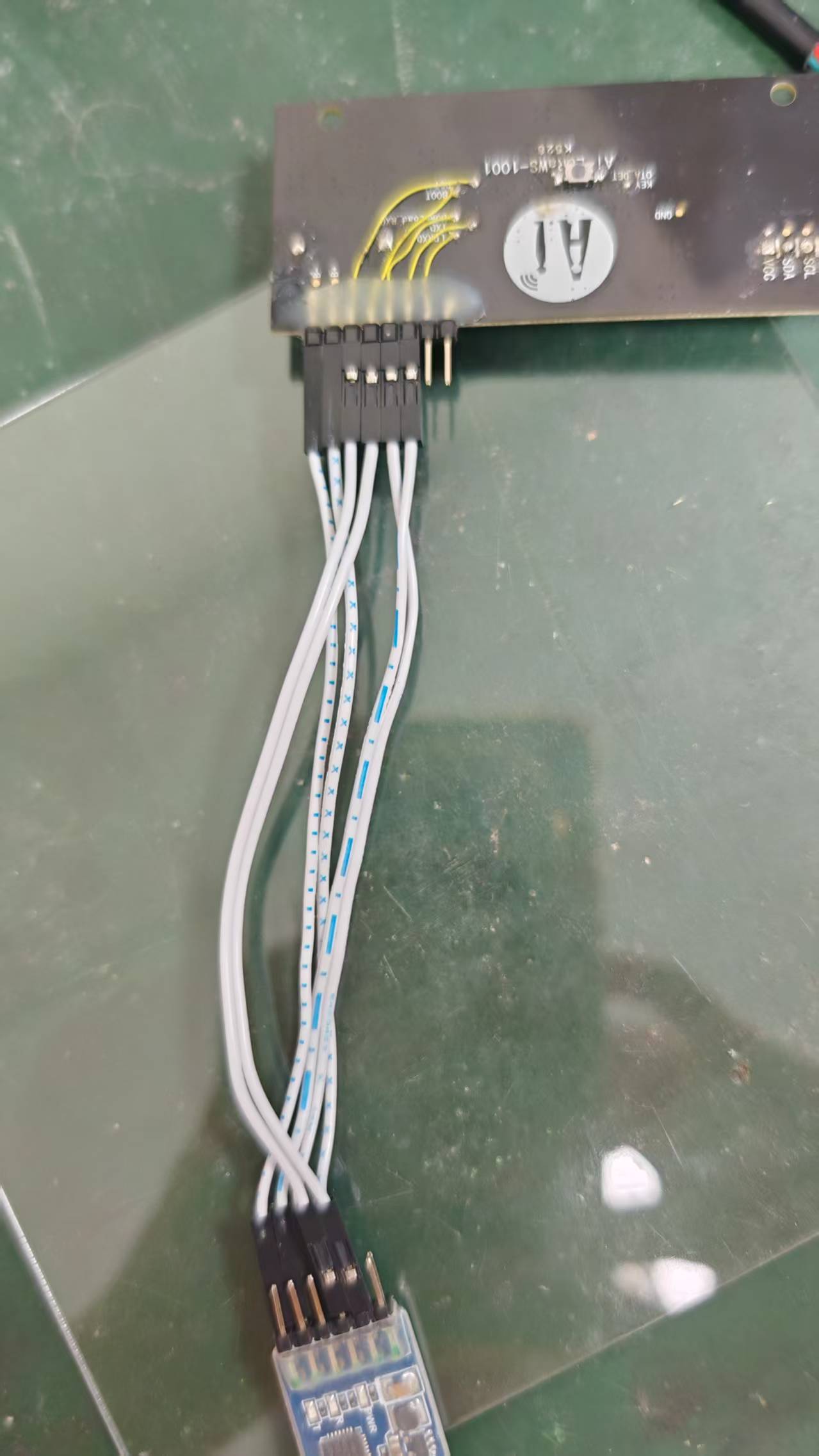
3.2 Connection Verification
After connecting, insert the TTL module's USB end into the PC and open the Device Manager.
Check whether the virtual serial port is recognized (e.g., COM3). If no yellow exclamation mark appears, the connection is normal.
If the port is not recognized, check the driver installation, loose wiring, or TTL module failure.
4. Firmware Flashing Procedure
4.1 Flashing Tool Configuration
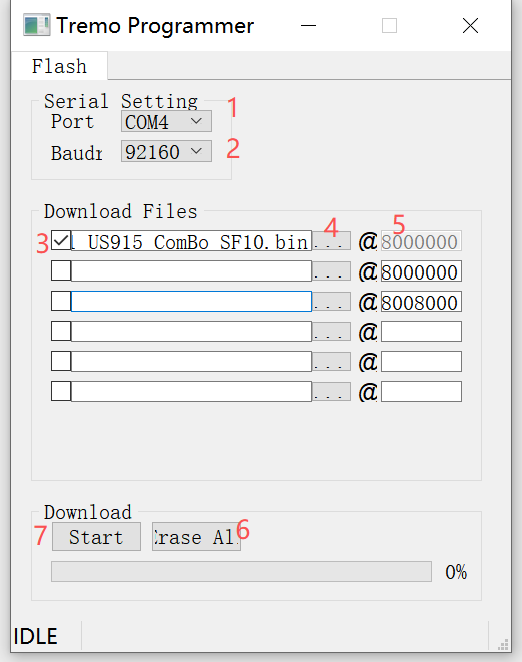
- The operation method for the flashing tool (TremoProgrammer_v0.8) is as follows, and its interface is shown in the figure below:
Open TremoProgrammer_v0.8 and select the virtual serial port recognized in the Device Manager (e.g., COM3).
Port: Select the virtual serial port recognized in the Device Manager (e.g., COM3).
Baud Rate: Default 921600bps (for faster flashing speed).
In the "Download Files" column, check the box in front of the first line.
Click the file browse control in the first line and select the firmware to be flashed.
Configure the flash address to 0.
5. Firmware Verification
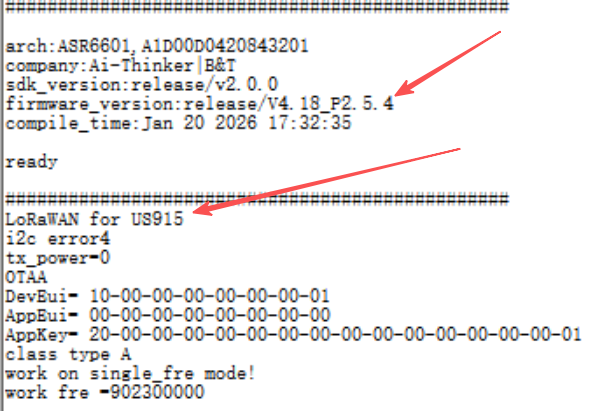
Open the SSCOM serial port tool on the PC, and select the virtual serial port recognized in the Device Manager (e.g., COM3).
Configure the baud rate as 9600.
Open the serial port, and select "RTS" and "DTR", then deselect "DTR". Observe the data content printed by the serial port tool.
Confirm whether the firmware flashing is correct by checking the frequency band and firmware version printed by the program.
Contact Us
This concludes today’s guide, designed to help you quickly get started with the new solution. For more resources, please visit our official website.
Official Website: https://www.ai-thinker.com
Development DOCS: https://docs.ai-thinker.com/
Official Forum: http://bbs.ai-thinker.com
Technical Support: support@aithinker.com